Did the numbers
go down?
Add your before log and your retest log. See the dropped-frame, encoding-lag and rendering-lag percentages side by side.
Free · no account · logs stay in your browser
The optional Repair Report is $9.99 one-time. You can decide after you see your comparison.
Checking whether this browser already has a Repair Report purchase. Your free comparison still works.
Paste your two logs
How to get the right before and after logs
- Stream or record, then stop. OBS only writes these percentages when you stop.
- Copy the log: in OBS, Help > Log Files > View Current Log. That is your "before" log.
- Change one setting, restart OBS, run the same scene, game and streaming service for about the same time, stop, and copy the log again. That is your "after" log.
Only have one log so far? Read it with the free OBS Log Analyzer, make one change, then come back with the second log.
Your logs are read in this browser tab and are never uploaded or saved. Remove stream keys or passwords if you see any in the text. If you reload the page, paste the logs again.
Your saved tests
You can keep the percentages and notes from up to 10 comparisons in this browser. Saving an eleventh removes the oldest. Logs are never saved, saving a test sends nothing to us, and the list does not follow you to another device. Clearing your browser data deletes it. Saved tests are added to every Repair Report you download. For that, only their percentages go to our server; their names and notes are added in your browser.
No saved tests on this device yet. Compare two logs, then choose "Save these numbers on this device".
What is in the Repair Report
Comparing two logs on this page is free. The Repair Report is an optional text file made from that comparison: what the two logs measured, which number is still highest, the one change to test next and why (when a number is 0.1% or higher), how to restore your old settings, and a retest checklist. One $9.99 payment covers reports for your later comparisons too. There is no subscription and no person reviews your logs. Your log never leaves your browser. To build a paid Repair Report we send only the percentages from your comparison to our server.
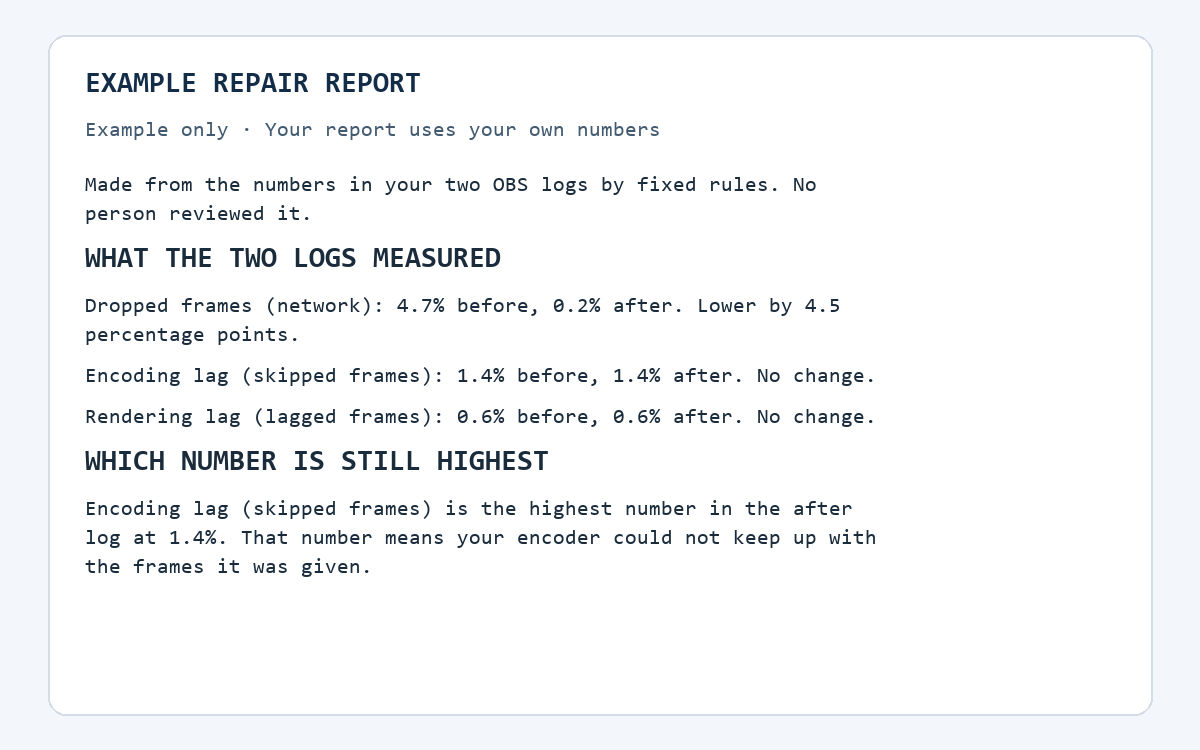
Read an example report (free)
This example was made from the example logs on this page, not from your logs. A report for your own logs has your numbers and its own next change.
Loading the example…
The report works from three percentages only. It cannot tell you why audio is missing or why a capture is black. For those, watch a recording and use the free troubleshooting guides.
To buy, compare your own two logs above; the checkout button appears under your result. Paid already and downloads are not working? Open your restore link in this browser (we email it to the address you used at Stripe checkout), or email support with your Stripe receipt. Do not pay twice. Full details are in the Repair Report terms.